
Quick start
The short version. Steps 1 to 3 are done once; 4 and 5 every time you play.
- Open Albion Meter and go to http://127.0.0.1:5187 in your browser.
- Game data tab → Import game folder → choose your Albion Online installation.
- Meter tab → Connect account → approve the code on AlbionLab.
- Capture tab → Start capture, before you enter the map.
- Meter tab → Play. Your session is live on AlbionLab.
1. Install and open
- Windows — extract the whole ZIP (do not run it from inside the ZIP) and open AlbionMeter.Server.exe. It asks for administrator rights: accept, capture needs them.
- Linux — extract it, allow capture once and run it from a terminal:
sudo setcap cap_net_raw=ep ./AlbionMeter.Server
./AlbionMeter.Server
A console window says “Albion Meter is running” with the address. Open http://127.0.0.1:5187 in any browser. The meter runs only on your PC: that page is served by the program itself.
Keep the console window open while you play — closing it closes the meter. If it says port 5187 is already in use, the meter is already open: just open the address.
The top bar of the page:
- Meter — record controls, your AlbionLab connection and the damage/healing bars.
- Capture — the network card the meter listens to.
- Game data — the weapon and map names read from your game.
- Status — Ready, Recording, Paused or Stopped. Reconnecting means the page lost contact with the program (it was closed or is restarting).
2. Import the game data (once)
Weapon names, icons and map names come from your own game files, so they always match your game version. Without this step weapons show as “?”. Repeat it after a big game update.
- Open the Game data tab and click Import game folder.
- Choose the folder that contains Albion-Online_Data. Usually: game inside the Albion Online folder on Windows (under steamapps/common on Steam), or game_x64 on Linux. A parent folder works too.
- The browser asks whether to upload the files. Confirm: they go only to the meter on your own PC, and only world.bin, items.bin, localization.bin and the version are read.

Worked when: the message “Imported … maps and … weapon definitions” appears and Game version shows a number. If it says the folder does not contain GameData/cluster/world.bin, you picked a folder that is too deep or a different one.
The Game catalog below lists every weapon (name, tier, ID) and map. Use the search to check a weapon by name, family or ID.
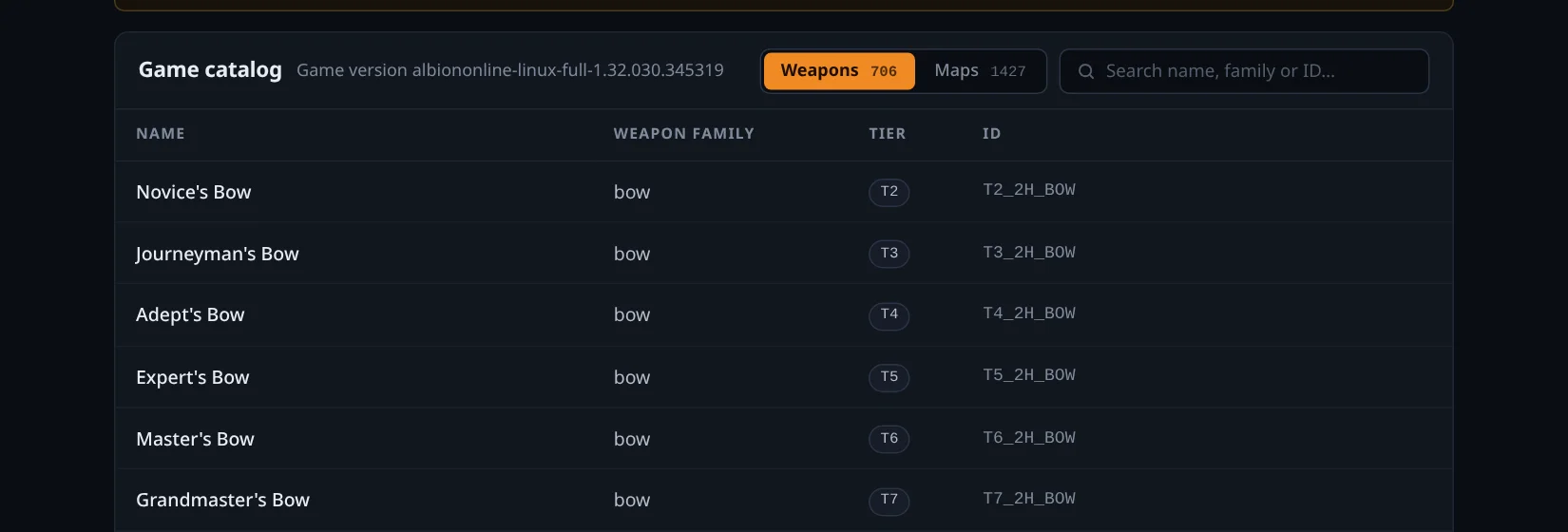
3. Start the capture (every time you open the meter)
The meter reads combat from the traffic the game already receives — it never touches the game. Capture does not start by itself: open the Capture tab and press Start capture each time you open Albion Meter. Your last interface is remembered.
- Capture method — keep System socket: it needs nothing installed. Choose Npcap (Windows) or libpcap (Linux) only if it is installed and the socket shows no traffic, as can happen with some VPNs.
- Network interface — on Windows, the card you use for internet (Wi-Fi or Ethernet) comes selected. On Linux, keep All interfaces. With a VPN or ExitLag, try the adapter it creates if the default shows nothing. Refresh reloads the list.
- Start capture / Stop — the method and interface can only be changed while stopped.
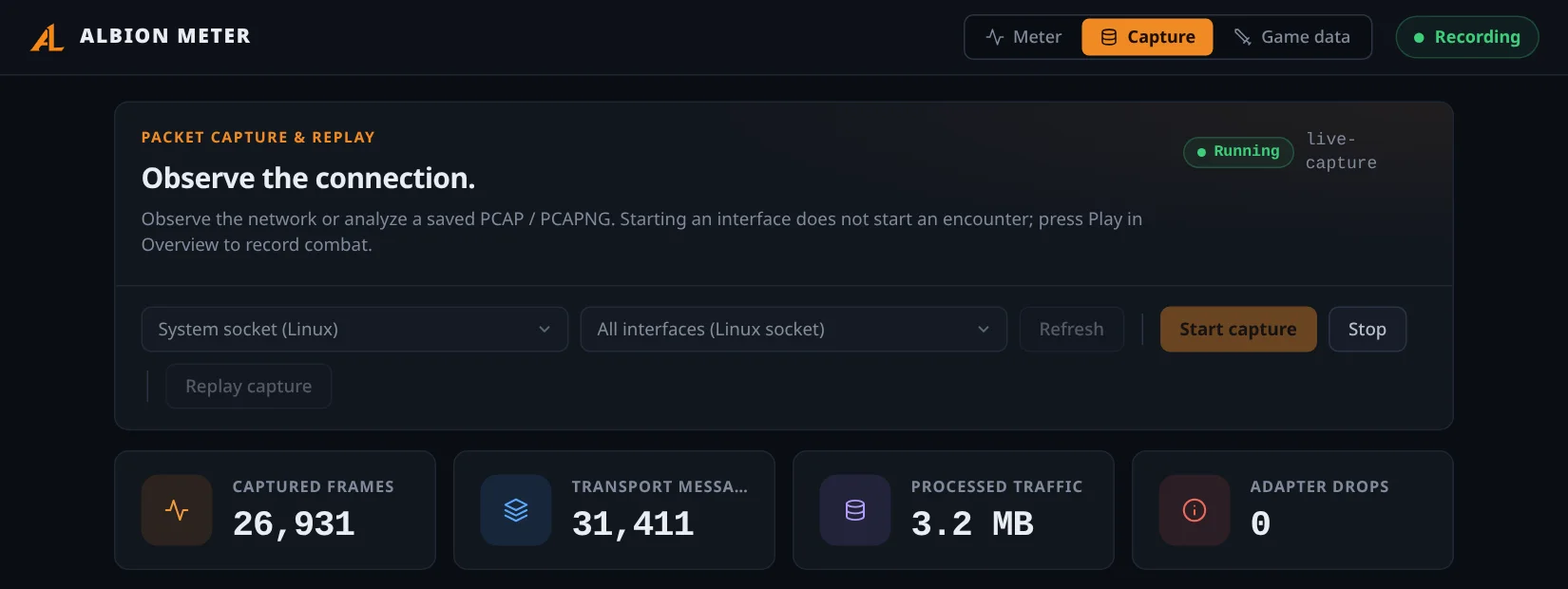
Worked when: with the game open, Captured frames and Transport messages keep growing. Stuck at zero = wrong interface: Stop, pick another one, Start capture. Adapter drops should stay at or near zero.
On Windows the first start adds a firewall rule for the meter so incoming game traffic is visible. If a permission error appears, close the meter and open it again as administrator (Windows) or run the setcap command again — on Linux it is needed after every update.
Diagnostics shows decoder counters; send a screenshot of this tab when asking for help. Replay capture analyzes a saved .pcap/.pcapng file (up to 40 MB) and is only for troubleshooting.
4. Connect your AlbionLab account (once per PC)
Connecting lets the meter publish each record as a live session on albionlab.app. Nothing to type: the meter opens the site and you approve.
- Meter tab → Connect account in the AlbionLab card.

- AlbionLab opens in your browser. If you are not signed in, click Sign in with Discord. AlbionLab only receives your Discord id, name and avatar — never your e-mail, servers or messages.
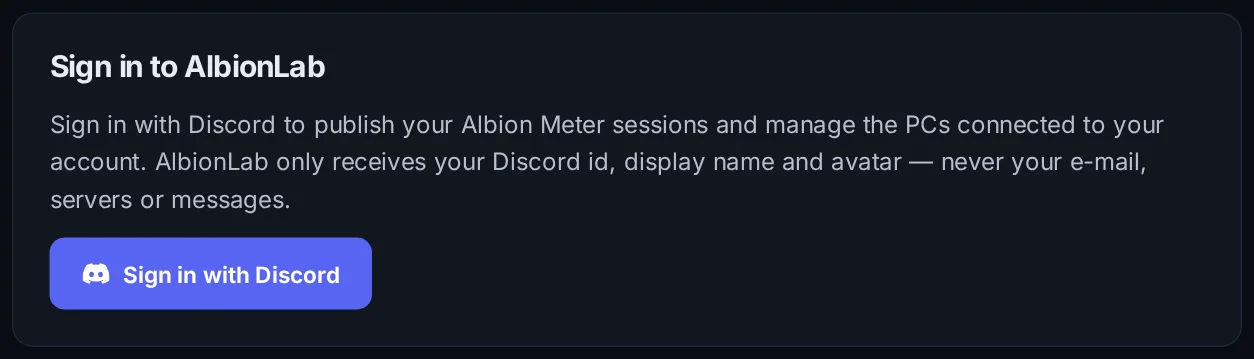
- The meter shows a code and waits. If you closed the tab, click Open AlbionLab again.
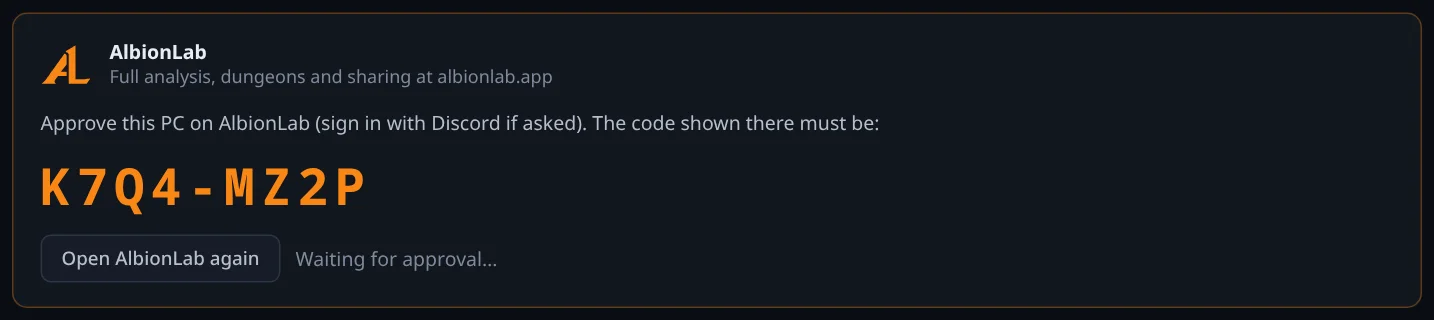
- On AlbionLab, check that the code is identical and click Approve. Within a few seconds the meter shows your Discord name and avatar.
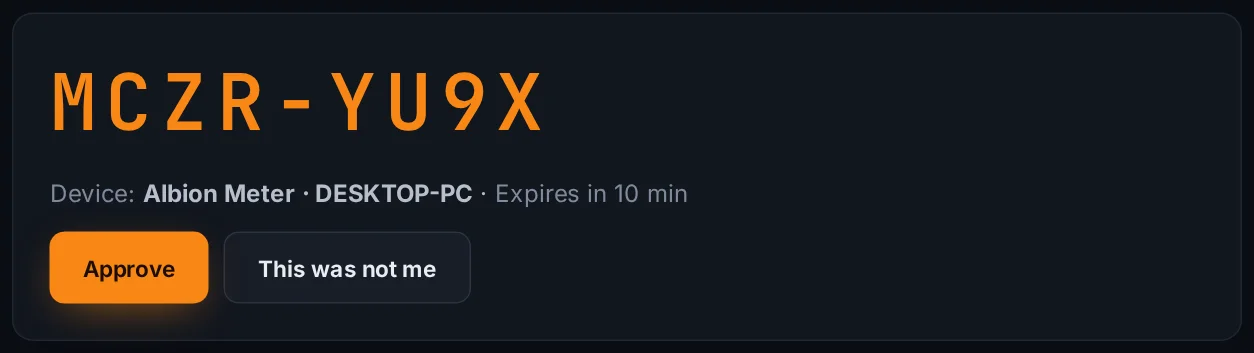
Only approve a code your own meter is showing. If you did not start it, click This was not me. Codes expire after 10 minutes — click Connect account again for a new one.
Your account page lists every connected PC; Disconnect stops that PC from publishing immediately.
5. Record a dungeon
The order matters, because the game only tells the meter who you and your party are when you enter a zone:
- Start capture (step 3) before entering the dungeon or map.
- Press Play on the Meter tab — now or right before the first pull.
- Play normally. The bars and your AlbionLab session update every second.
- Press Stop when the run ends.
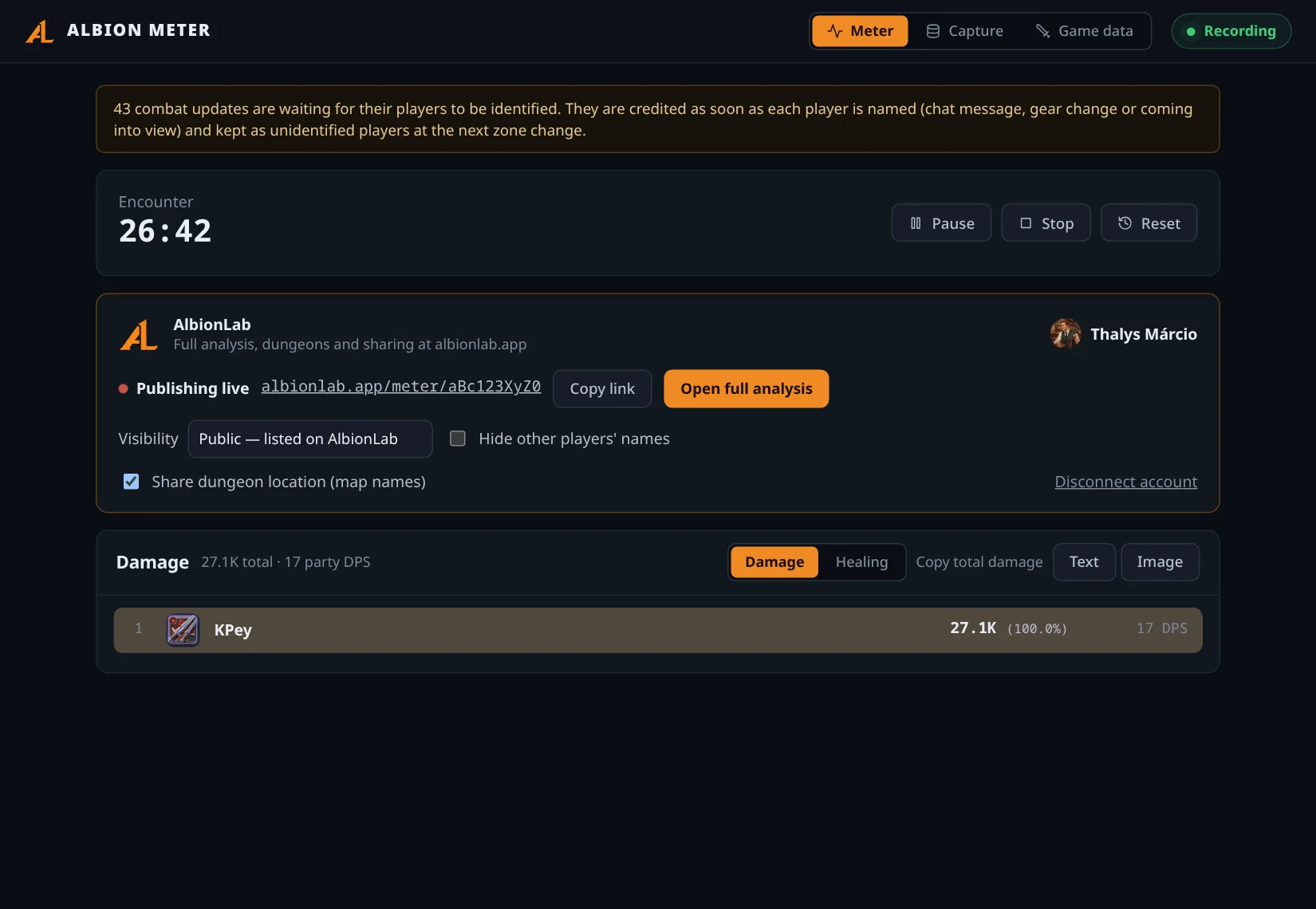
- Encounter — the length of the current record.
- Play — starts a new record from zero and a new AlbionLab session.
- Pause / Resume — freezes the numbers and then continues the same record (a break, a regroup).
- Stop — ends the record; the session on AlbionLab is marked Ended.
- Reset — starts a new record from zero right now, with a new session.
Started in the middle of a map? Hits that already happened are kept, and a notice says how many updates are waiting for their players. They are credited as soon as each player is named (chat message, gear change or coming into view); changing zone once identifies everyone.
6. Read the bars and copy the result
- Damage / Healing — switches what the bars measure; the heading shows the party total and party DPS or HPS.
- Each line — position, weapon icon, name, total, share of the party and that player’s DPS or HPS over the record.
- Who is listed — your party. Someone not yet confirmed as a member appears once they deal damage or heal.
- Copy total damage (or healing) — the text button copies one line per player, ready for the game chat, like “1. Name: 1520340(38.2%)|2876.1 DPS”. The image button copies a picture of the ranking with the weapon icons.
7. The AlbionLab card
- Publishing live — the session is up to date. Offline — will resend: the internet or the site dropped; the meter keeps measuring and catches up by itself. Session finished — after Stop. Not published — press Play.
- Link, Copy link and Open full analysis — the session address to send to your party, and the full page on AlbionLab.
- Visibility — Unlisted (default: anyone with the link), Public (listed on Sessions and kept) or Private (only you, signed in).
- Hide other players’ names — others see Player 1, Player 2… instead of your party’s names. You always see them.
- Share dungeon location — off by default, so nobody learns where you farm. Turn it on to show map names on AlbionLab.
- Disconnect account — removes this PC from your account.
Visibility and hidden names apply to the current session; you can also change them later on the site.
8. Your session on AlbionLab
The session page updates on its own while you record (Live badge), shows Paused during a pause and Ended after Stop.
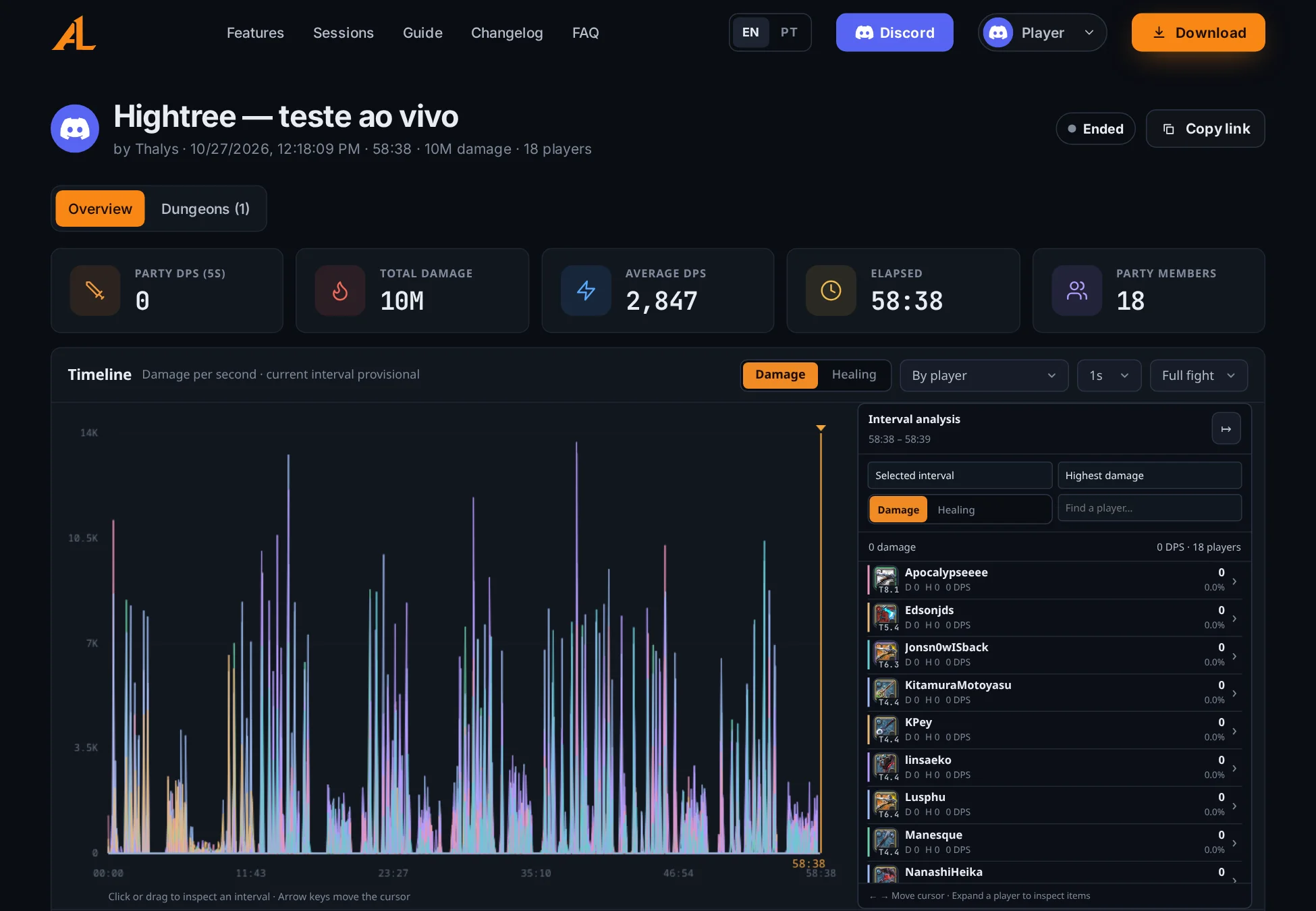
- Overview — totals, the timeline, a selectable interval with each player’s numbers, and the party with weapons and gear.
- Dungeons — each run and each floor with its own totals.
- Weapons — when the game never sent a player’s gear, the weapon they hit the most with is shown, marked “seen in combat”.
- Session settings (only you) — title, visibility, hide names, delete.
- Account → My sessions lists everything you recorded; Sessions lists every player’s public sessions.
Sessions that are not public are deleted after 7 days. Make a session public to keep it.
9. Troubleshooting
- Nothing happens when I fight — is the capture running? A red banner “Combat is not being recorded” means it stopped: open the Capture tab and Start capture. Then press Play.
- Captured frames stay at zero — choose another interface (All interfaces on Linux), or try Npcap/libpcap. Check the administrator prompt (Windows) or setcap (Linux).
- My character or the party does not show up — change zone once (next map, a building or relog) so the game introduces everyone.
- Weapons show “?” — import the game data (step 2), or import it again after a game update.
- Other players are missing — only your party is listed: join a party.
- Not publishing — read the AlbionLab card. If it asks to connect again, the PC was disconnected on your account page: click Connect account.
- The page says Reconnecting — the program was closed. Open it again; the console must stay open.
Still stuck? Ask in the Discord community with a screenshot of the Capture tab.